Apple’s First Touchscreen MacBook Extends macOS, Cursor Intact
Apple’s touchscreen MacBook adds context-aware controls and iOS-style gestures, but small targets, inconsistent taps and Final Cut Pro’s missing pinch-to-zoom leave macOS cursor-first.
- AuthorJames Calloway
- ChannelInteraction & Visual Craft
- Filed
- Read4 min
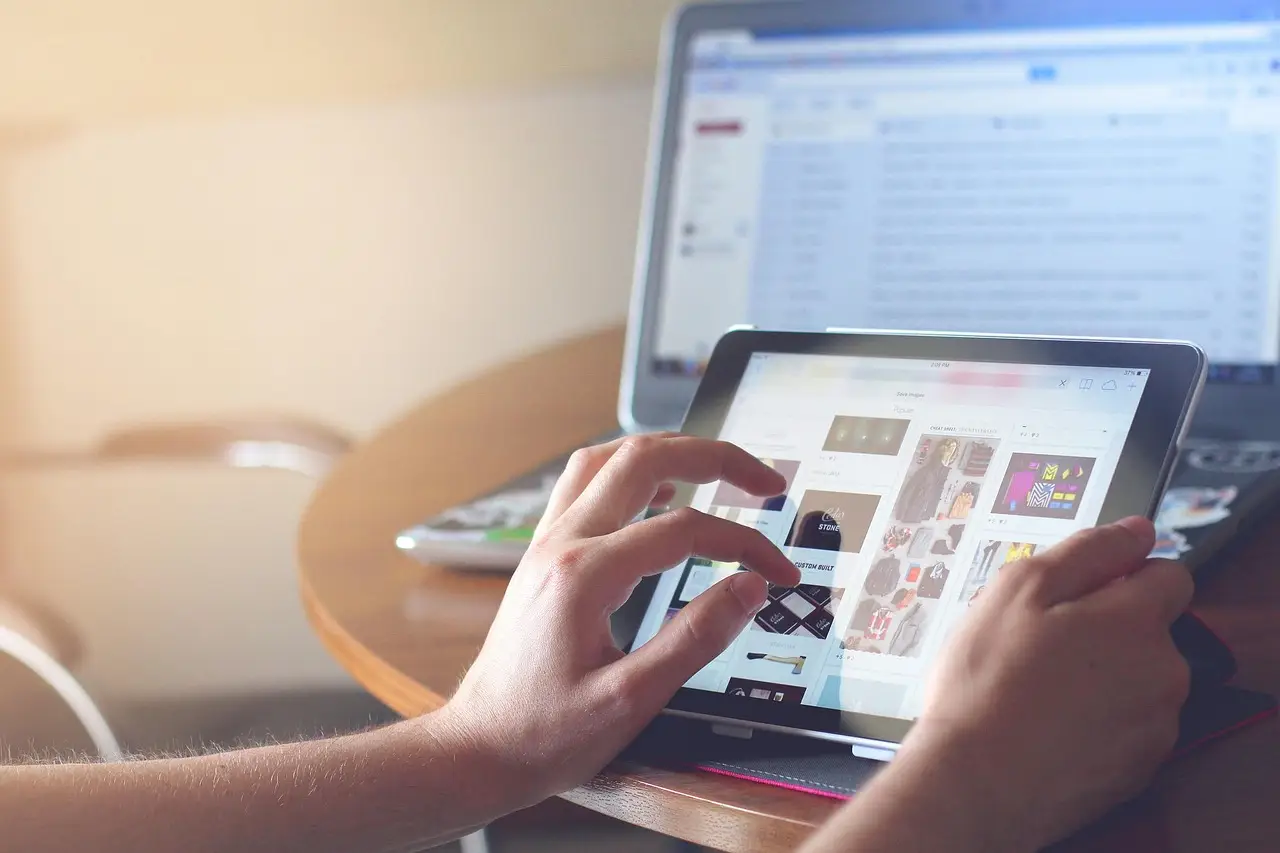
- Apple introduced its first touchscreen MacBook while retaining the keyboard and trackpad.
- The direct-bonded panel is integrated into the tandem OLED PROLED XDR display to reduce input latency.
- macOS expands controls such as window buttons and increases dropdown spacing when a finger approaches.
- Final Cut Pro does not support pinch-to-zoom.
- Touch complements rather than replaces cursor, keyboard and trackpad workflows.
Apple has introduced its first MacBook with a touchscreen, adding finger input without removing the keyboard or trackpad. The machine preserves macOS’s cursor-based architecture and treats touch as an additional route into selected tasks.
The display carries a gesture vocabulary borrowed from iOS and iPadOS:
- Swipe between desktops.
- Pinch to zoom.
- Drag windows.
- Pull down Control Center.
- Refresh a webpage.
Users already familiar with Apple’s ecosystem have a recognizable starting point. A Mac Vince demonstration provides the basis for these first impressions, showing where touch removes pointer work and where the operating system still asks for precision.
How does macOS adapt to touch?
The display’s direct-bonded panel sits within the tandem OLED PROLED XDR screen. Apple links that construction to lower input latency and sharp visuals, addressing two practical conditions for touch: the screen must register a finger promptly, and the user must still read the interface around it.
macOS also adjusts controls around an approaching finger. Buttons such as window controls expand slightly, while dropdown spacing increases to make menu targets easier to reach. This context-aware scaling reduces the precision required for a tap without converting the wider desktop into an iPad-style layout.
That local adjustment makes touch most useful for brief, bounded actions:
- Scrolling and media playback.
- Opening app icons.
- Annotating documents or sketching.
- Making quick edits for creative work.
- Using iPhone and iPad apps that had struggled with mouse-and-keyboard input.
Each example reduces pointer dependence for a defined task. None requires Apple to replace the pointer-based tools that organize macOS.
Where does the hybrid still fall short?
macOS still designs many elements for a precise cursor. Small close buttons, dropdown menus, scrollbars and text fields can demand more attention with a fingertip than with a mouse or trackpad. The learning curve comes from having to discover which controls accept touch comfortably rather than treating every visible object as a touch target.
Gestures also carry different rules across Apple platforms. A single tap or double tap may behave differently in macOS than in iOS or iPadOS. Those differences force users to retain platform-specific knowledge, weakening the consistency of the wider ecosystem.
Application support presents the larger obstacle. Many macOS apps, including Apple’s own software, lack full gesture support. Final Cut Pro does not offer pinch-to-zoom, for example. In a professional editing workflow, that omission narrows touch’s role: a user can reach a command or make a quick change, but cannot use a common navigation action throughout the project.
Apple presents the result as an enhancement rather than a fundamental shift, and the hardware follows that framing by keeping the keyboard and trackpad in place. In practical terms, the screen behaves more like a trackpad beside the display than a tablet replacing it.
Can developers close the gap?
Apple is encouraging developers to apply the same adaptive pattern: enlarge touch targets, support gesture-based navigation and simplify interfaces where doing so does not impair precise input. These changes can make touch useful inside desktop apps while preserving established mouse, trackpad and keyboard workflows.
Coverage remains the harder problem. An adaptive button helps only when the app also recognizes the gesture that reaches the screen. If a professional tool omits an expected command, macOS cannot make that tool consistent on its own. Wider adoption will take time because Apple and third-party developers must coordinate touch support across apps rather than rely on system-level scaling alone.
Is touchscreen macOS ready for everyday work?
For most daily work, the touchscreen remains optional rather than essential. It helps with quick scrolling, media, annotation, sketching and native iOS apps, but macOS is not yet fully optimized for touch-first use. Apple has deliberately avoided rebuilding the operating system around touch, preserving its established identity while it tests a second input method.
That restraint limits disruption, but it also leaves the deeper work ahead. The panel construction, context-aware targets and borrowed gestures address the first contact with the screen; inconsistent taps and missing app commands determine whether people keep using it. Apple still needs significant refinements and a more unified design philosophy. As developers extend touch support, the next test is whether those separate improvements form one coherent interface across its devices.
Source: geeky-gadgets.com
More from James Calloway
Show full bio
Senior reporter covering regulation, policy and their impact on Product and interaction design, design systems at Interface Wire.
103 articles